


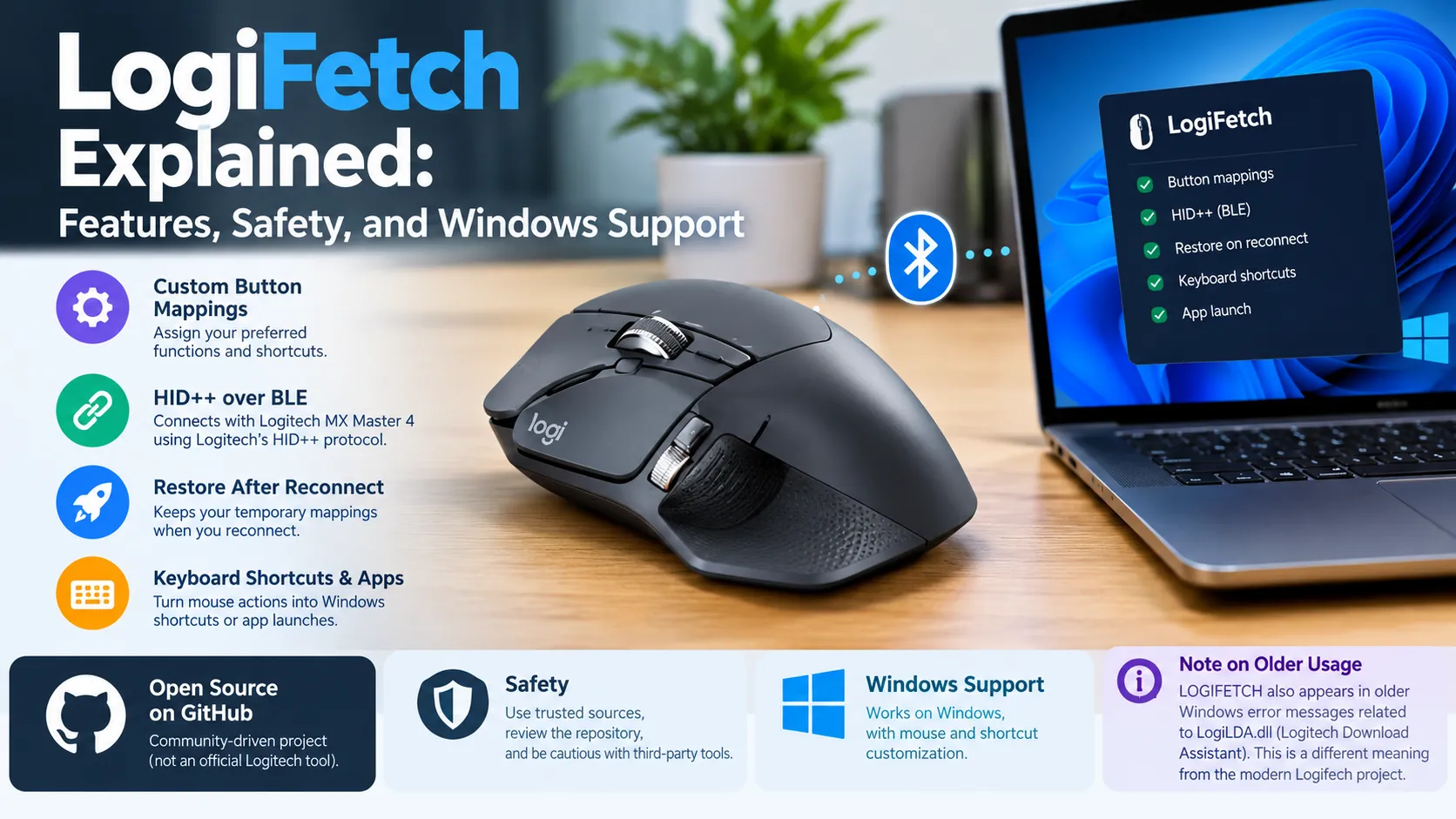
LogiFetch is an open-source Windows utility designed to customize selected controls on the Logitech MX Master 4 mouse. It can restore temporary button mappings after a Bluetooth reconnection, assign Windows keyboard shortcuts to mouse buttons, and launch applications through a configurable background agent. However, LogiFetch can also refer to an older Windows startup error associated with Logitech Download Assistant, so understanding the context is important.

What Is LogiFetch?
LogiFetch is a third-party software project available on GitHub that focuses on advanced Logitech mouse customization. Its main purpose is to provide additional control over specific mouse buttons and functions that users may want to customize beyond their usual settings.
According to the project’s official GitHub repository, the software communicates with the Logitech MX Master 4 through Logitech’s HID++ device protocol over Bluetooth Low Energy (BLE). It can restore selected temporary button mappings after a reconnection and translate certain mouse actions into Windows keyboard shortcuts or application launches.
The project is intentionally limited in scope. It is not designed to replace every feature of Logitech’s official device-management software, Logi Options+. Instead, it provides a more technical, configuration-based approach for users who need specific mouse behaviors.
There is also an older meaning of the term. In Windows troubleshooting discussions, LOGIFETCH appears in error messages involving LogiLDA.dll, a component associated with Logitech Download Assistant. This historical reference is different from the modern open-source Logifetch utility.
What Does LogiFetch Do?
LogiFetch focuses on mouse-button customization, keyboard shortcuts, application launching, and maintaining selected settings when a supported mouse reconnects. Its features are controlled through a configuration file rather than a conventional graphical settings interface.
1. Restores Mouse Button Mappings
One of LogiFetch’s main functions is to reapply selected temporary mouse-button mappings after a Bluetooth reconnection.
Some device-level customizations may not persist across reconnections. LogiFetch is designed to restore configured mappings when the supported mouse reconnects, reducing the need to repeat certain adjustments manually.
For example, the project’s documentation describes swapping the functions of the scroll-wheel mode-shift control and the middle-click button. Such a change can be useful for someone who prefers a different mouse layout.
2. Assigns Windows Keyboard Shortcuts
LogiFetch can associate supported mouse controls with keyboard shortcuts. This allows users to trigger familiar Windows actions without reaching for the keyboard.
The documented shortcut options include modifier keys such as Ctrl, Alt, Shift, and the Windows key, alongside navigation keys, function keys, letters, and numbers.
For example, a configured mouse button can trigger Win + Tab, which opens Windows Task View. Other combinations can be assigned according to the user’s workflow and the software’s supported key names.
3. Launches Applications From Mouse Buttons
Another feature lets users configure a mouse control to launch a specific application.
The configuration identifies the executable to run and can include optional command-line arguments and a working directory. This is useful for people who regularly open the same utility, search application, or productivity tool.
The project documentation provides an example that launches Everything Search, a desktop file-search utility, through a configured gesture button. The application must be installed at the specified location for that example to work.
4. Uses a Simple JSON Configuration
LogiFetch stores its settings in a JSON file, which is a structured text format used to organize configuration data. Users can edit this file to define button mappings, custom actions, and general application behavior.
The configuration includes sections for temporary remapping, custom actions, settings, and optional haptic-related functionality. This approach provides flexibility, but it also requires care because incorrectly formatted values or unsupported settings may prevent an action from working as expected.
5. Includes Experimental Haptic Notification Options
The project also contains an optional feature intended to react to selected Windows Event Log events and generate haptic notification alerts.
However, this feature has an important limitation. The repository documentation states that the command needed to make the mouse vibrate has not yet been identified in the documented implementation. Users should therefore treat the haptic functionality as experimental rather than assuming that vibration alerts are fully operational.

Which Devices and Operating Systems Does LogiFetch Support?
LogiFetch currently has a narrow compatibility range. The project’s documentation identifies the Logitech MX Master 4 connected through Bluetooth Low Energy as its supported configuration.
| Requirement | Documented support |
|---|---|
| Supported mouse | Logitech MX Master 4 |
| Connection | Bluetooth Low Energy |
| Operating systems | Windows 10 and Windows 11 |
| Device communication | Logitech vendor HID++ |
| Main configuration method | JSON file |
| Runtime dependency | Python 3 |
| Other Logitech mice | Not officially supported by the project |
| USB receiver connections | Not currently supported |
| macOS and Linux | Not currently supported |
These compatibility details come from the project’s published documentation. The repository warns that changing hardware identifiers to experiment with other models does not establish compatibility.
This distinction matters if you own a Logitech mouse other than the MX Master 4. Even if another model has similar buttons, its communication protocol, device identifiers, or configuration behavior may differ. Users should not assume that changing the device identifier alone will make LogiFetch work correctly.
How to Install LogiFetch on Windows
LogiFetch uses a PowerShell installation script and requires Python 3. Its documented installer can run without administrator privileges and creates a scheduled task for the current Windows user.
Because the software interacts with mouse controls and can send keyboard input or launch programs, review its source code before installing it.
Step 1: Open the Official Repository
Visit the LogiFetch GitHub repository. Review the README, installation script, configuration file, and relevant source files before downloading or running anything.
Avoid unofficial download sites that offer files under the same name without establishing their relationship to the original project.
Step 2: Check the Requirements
Make sure you have:
- A compatible Logitech MX Master 4 mouse.
- A Windows 10 or Windows 11 computer.
- A Bluetooth Low Energy connection to the mouse.
- Python 3 installed.
- Access to PowerShell.
The project is intended to run under the current user’s Windows session rather than as a system-wide Windows service.
Step 3: Run the Installation Script
After downloading and reviewing the repository, open a PowerShell window in the folder containing the installer. The documented installation command is:
powershell -ExecutionPolicy Bypass -File .\Install-Logifetch.ps1This command follows the project’s installation instructions. The -ExecutionPolicy Bypass option changes the policy handling for that PowerShell invocation, so it should not be treated as a substitute for reviewing the script’s contents.
According to the README, the installer places the application files under %LOCALAPPDATA%\Logifetch, preserves an existing configuration file, creates a scheduled task for the current user, and starts the background agent.
Step 4: Configure the Mouse Actions
After installation, edit the configuration file located at:
%LOCALAPPDATA%\Logifetch\config.jsonYou can use the JSON settings to define supported button mappings, keyboard shortcuts, and application launches. Make small changes and test each action before adding more complicated configurations.
Be especially careful with executable paths and button assignments. A shortcut can trigger an unintended Windows action, while an incorrect application path can cause a configured launch to fail.
Step 5: Test the Configuration
Reconnect the mouse through Bluetooth and verify that the configured mappings work as expected. Test each custom action individually, including any shortcut or application launch.
If a mapping does not work, check the configuration syntax, confirm that the correct mouse is connected, and consult the repository’s troubleshooting notes. Do not experiment with unsupported hardware identifiers unless you understand the device communication requirements.
Also Read: Active System Console: Features, Uses, and Safety Guide

Is LogiFetch Safe to Use?
LogiFetch is an identifiable open-source project, but that alone does not establish that every file bearing its name is safe or that the software has undergone an independent security audit.
The public GitHub repository makes its documentation and source code available for inspection. This transparency is useful because users can examine what the software is intended to do before running it.
Nevertheless, there are several considerations worth keeping in mind.
Review the Source Code Before Installation
The installer runs a PowerShell script and creates a background task that starts at user logon. That behavior is consistent with the project’s stated purpose, but it also means the software can remain active after installation.
Only run the script after reviewing it and confirming that it comes from the intended repository. An executable or script downloaded from an unrelated website should not be trusted simply because its filename contains “LogiFetch.”
Understand What the Configuration Can Do
LogiFetch can simulate keyboard shortcuts and launch configured applications. Consequently, its settings influence what happens when a mapped mouse button is pressed.
Review the custom_actions section and verify every executable path. If you share a configuration file with someone else, inspect it before using it on your own computer.
Do Not Assume That Open Source Means Risk-Free
Publicly available source code helps users inspect a project, but it does not guarantee that every version is free from bugs or security issues. The project should be evaluated according to its actual code, maintenance, and behavior on the computer where it is installed.
The available documentation describes LogiFetch as a local customization utility. It does not, by itself, provide enough evidence to make a blanket claim about the privacy or security of every installation.
Check the File Location if You Find an Unknown Process
If you encounter a process named LogiFetch on your computer, inspect its file location and installation source before deciding whether it is legitimate. A process name alone cannot establish which program is running.
The documented installation directory for the current project is %LOCALAPPDATA%\Logifetch. A file in a different location is not automatically malicious, but it should be investigated rather than assumed to belong to this project.
LogiFetch vs. Logitech Logi Options+
LogiFetch and Logi Options+ serve related purposes, but they are different tools. Logi Options+ is Logitech’s official software for managing and customizing supported devices, while LogiFetch is a separate project focused on specific mouse controls.
Logitech’s official supported-device documentation lists the MX Master 4 as compatible with Logi Options+ and includes features such as button customization and application-specific settings.
| Feature | LogiFetch | Logitech Logi Options+ |
|---|---|---|
| Developer | Third-party open-source project | Logitech |
| Primary purpose | Specialized mouse-control customization | Official device management and customization |
| Configuration | JSON file | Graphical application |
| Supported devices | MX Master 4 over Bluetooth LE, according to the project | Multiple supported Logitech devices |
| Custom buttons and actions | Supported through configured mappings | Supported according to device compatibility |
| Reapply selected temporary mappings after reconnection | A central project feature | Depends on the device and available software features |
| Best suited for | Users who need specific low-level customization | Most users seeking official device settings and support |
For most people, Logi Options+ is the more straightforward starting point because it offers a graphical interface and official Logitech support. LogiFetch may be worth exploring when a user specifically needs its documented remapping behavior or configuration-based actions.
The two tools should not be considered interchangeable, and there is no reason to install LogiFetch unless its particular features solve a problem you actually have.
What Does the LOGIFETCH Error in LogiLDA.dll Mean?
Some Windows users encounter an error similar to:
C:\Windows\System32\LogiLDA.dll - Missing entry: LOGIFETCH
This is a separate issue from the modern LogiFetch GitHub project. Historical Windows troubleshooting records associate the message with Logitech Download Assistant and its LogiLDA.dll component, particularly when an outdated startup entry remains after software or Windows changes.
The message does not prove that the open-source Logifetch utility is installed. It may instead indicate that Windows is attempting to start an older Logitech component using a missing or incompatible entry point.
How to Troubleshoot the Older Error
If you see this error, use the following approach.
- Check Windows startup applications. Open Task Manager, select the Startup apps section, and look for Logitech Download Assistant. If you do not need it, disabling its startup entry may stop the error from appearing.
- Review installed Logitech software. Check Windows Settings under Apps to determine whether Logitech Download Assistant or related software is installed and whether it is still needed.
- Use official software when necessary. If your mouse or keyboard needs Logitech software, download the appropriate supported application from Logitech’s official website.
- Avoid deleting random DLL files. Do not download replacement DLL files from unknown websites or remove system files simply because their names appear in an error message.
- Be cautious with registry changes. Some historical fixes involve changing a Windows startup registry entry. Back up the relevant settings and understand the change before attempting registry editing.
If the error persists after removing an obsolete startup entry, further diagnosis may be necessary. The right fix depends on the exact error, installed Logitech software, and Windows configuration.
How to Uninstall LogiFetch
The current project includes a documented removal process. Its installer supports a removal option, and the repository also provides an uninstall.bat file.
If you still have the project files, open PowerShell in the repository directory and use the documented command:
powershell -ExecutionPolicy Bypass -File .\Install-Logifetch.ps1 -RemoveThe repository states that this process stops the running agent, removes its scheduled task and current-user startup entry, and deletes the local %LOCALAPPDATA%\Logifetch directory.
After uninstalling, check Task Manager and Windows startup settings to confirm that the agent is no longer running. If you only encountered the older LogiLDA.dll error, uninstalling the modern Logifetch project is unlikely to address the underlying cause.
Advantages and Limitations of LogiFetch
LogiFetch has a clear purpose, but its value depends on the device and customization requirements.
Advantages
- Provides specialized control over selected Logitech mouse buttons.
- Can restore temporary mappings after Bluetooth reconnection.
- Supports configurable Windows keyboard shortcuts.
- Can launch specified applications from mapped controls.
- Uses a readable configuration file.
- Makes its source code publicly available for inspection.
Limitations
- Currently targets a single Logitech mouse model.
- Requires Windows 10 or Windows 11 and a Bluetooth Low Energy connection.
- Requires Python 3 and some familiarity with configuration files.
- Does not replace the complete functionality of Logi Options+.
- Includes experimental haptic functionality that is not fully implemented according to its documentation.
- Requires users to review scripts and configurations before installation.
These limitations make LogiFetch a specialized tool rather than a general recommendation for every Logitech mouse owner.
Frequently Asked Questions About LogiFetch
1. Is LogiFetch an official Logitech application?
No. The current Logifetch project is a third-party open-source utility hosted on GitHub. Logitech’s official device-management application is Logi Options+, which supports compatible Logitech mice and keyboards.
2. Does LogiFetch work on Windows 11?
Yes. The project’s documentation lists Windows 11 and Windows 10 as supported operating systems. Compatibility also depends on using the supported Logitech MX Master 4 over Bluetooth Low Energy.
3. Does LogiFetch support every Logitech mouse?
No. The documented implementation specifically targets the MX Master 4. Other Logitech mice, USB receiver connections, macOS, and Linux are not currently supported by the project.
4. Is LogiFetch malware?
The project name alone is not evidence of malware. The public GitHub repository provides source code and documentation, but users should verify the origin of any installed file and review the code before running it. An unrelated executable with the same name should not automatically be trusted.
5. Why does my computer show a LOGIFETCH or LogiLDA.dll error?
An older Windows error mentioning LOGIFETCH and LogiLDA.dll is associated with Logitech Download Assistant. It can occur when an outdated or incompatible startup entry tries to call a missing component. This historical error is distinct from the modern Logifetch mouse-customization utility.
6. Can I uninstall LogiFetch without removing my Logitech mouse driver?
The project’s documented uninstaller removes its own agent, scheduled task, startup entry, and local configuration. It is not intended to uninstall your mouse hardware or its Windows driver. If you are troubleshooting an older LogiLDA.dll error, investigate Logitech Download Assistant separately.
Also Read: Google Atlas Chromebook: Pixelbook Go Features, Updates, and Support
