


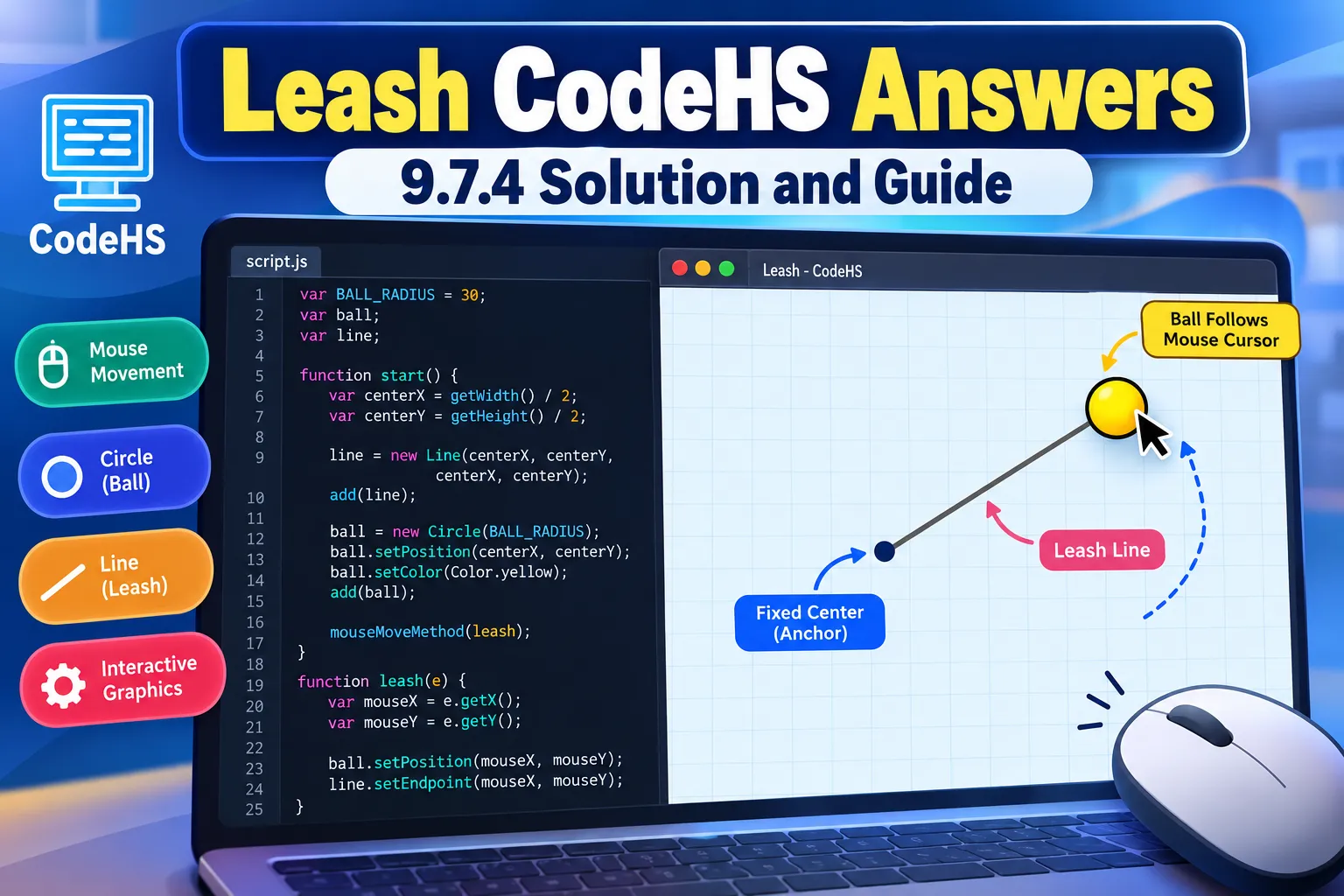
Leash CodeHS Answers refers to solutions for the 9.7.4 Leash exercise in CodeHS’s Introduction to Computer Science in JavaScript course. The exercise requires students to create a circle connected to a line, keep one end of the line anchored at the center of the canvas, and make the circle follow the mouse cursor.
The solution uses JavaScript graphics objects, mouse events, and coordinate updates. Understanding how these components interact is essential because the same programming concepts appear in animation, interactive graphics, and beginner game development.
This guide provides a complete example solution, explains the code step by step, identifies common mistakes, and shows how to test the program.

What Is the Leash Exercise in CodeHS?
Leash is an interactive JavaScript graphics exercise available through CodeHS. It introduces students to changing the positions of graphical objects in response to mouse movement.
The official CodeHS course outline identifies 9.7.4 Leash as an exercise within Lesson 9.7, Drawing Lines, following lessons on mouse events and animation.
The program represents a simple leash using two graphical elements:
- A circle: Represents the ball that follows the mouse.
- A line: Represents the leash connecting the fixed center of the screen to the ball.
When the user moves the cursor, the circle changes position. Meanwhile, the line updates its endpoint to remain connected to the circle.
Unlike an ordinary drawing exercise, Leash requires students to manipulate objects after creating them.
What Does the Assignment Require?
The core requirements are straightforward. The program should initially display a ball at the canvas center, with a line whose starting and ending points are also at that center.
When the mouse moves, the ball must move to the cursor’s coordinates, and the line’s endpoint must follow. Its starting point should remain fixed.
| Component | Required behavior |
|---|---|
| Circle | Starts at the canvas center |
| Line starting point | Remains fixed at the center |
| Line endpoint | Moves with the mouse |
| Mouse event | Updates the circle and line |
| Final output | Creates a moving ball connected to a stationary anchor |
This exercise is about event-driven programming, meaning that user actions determine when parts of the program execute.
9.7.4 Leash CodeHS Answers: Complete JavaScript Solution
The following example demonstrates the core behavior of the Leash exercise using the documented CodeHS JavaScript graphics API.
var BALL_RADIUS = 30;

var ball;
var line;

function start() {
    var centerX = getWidth() / 2;
    var centerY = getHeight() / 2;

    // Create the leash at the center.
    line = new Line(centerX, centerY, centerX, centerY);
    add(line);

    // Create the ball at the center.
    ball = new Circle(BALL_RADIUS);
    ball.setPosition(centerX, centerY);
    ball.setColor(Color.yellow);
    add(ball);

    // Update the graphics when the mouse moves.
    mouseMoveMethod(leash);
}

function leash(e) {
    var mouseX = e.getX();
    var mouseY = e.getY();

    // Move the ball to the cursor.
    ball.setPosition(mouseX, mouseY);

    // Move the endpoint while keeping the anchor fixed.
    line.setEndpoint(mouseX, mouseY);
}
This implementation follows the syntax documented in the official CodeHS JavaScript Graphics reference. The documentation confirms support for Circle, Line, setPosition(), setEndpoint(), and mouseMoveMethod().
Important: This is an example implementation of the exercise’s described behavior, not a solution verified against a particular classroom’s private autograder. If your assignment supplies starter code, specific variable names, or additional requirements, follow those instructions and use CodeHS’s Check Code feature to validate your work.
How the Leash CodeHS Solution Works
Although the completed program is relatively short, it demonstrates several fundamental JavaScript programming concepts.
Step 1: Declare Variables
The program begins by declaring its radius and two graphical objects.
var BALL_RADIUS = 30;

var ball;
var line;
BALL_RADIUS specifies the radius of the circle in canvas units, normally pixels.
The variables ball and line are declared outside the functions so that both start() and leash() can access the same objects.
This is an example of variable scope, which determines where variables can be referenced in a program.
For example, declaring ball only inside start() with var would make that variable local to start(). The separate leash() function would then be unable to access it directly.
Step 2: Calculate the Canvas Center
The next section determines the center of the drawing area.
var centerX = getWidth() / 2;
var centerY = getHeight() / 2;
getWidth() returns the canvas width, while getHeight() returns its height.
Dividing these values by two produces the coordinates of the center.
For instance, if a canvas is 400 pixels wide and 500 pixels tall, its center is located at:
- Horizontal coordinate: 200
- Vertical coordinate: 250
These are illustrative dimensions, not a claim about the default size of every CodeHS canvas.
Calculating the center dynamically makes the program more adaptable than inserting fixed coordinates.
Step 3: Create the Leash Line
The line is created using the Line constructor.
line = new Line(centerX, centerY, centerX, centerY);
add(line);
The constructor takes four coordinates:
new Line(x1, y1, x2, y2)
The first pair determines where the line begins, and the second pair determines where it ends.
Initially, both endpoints have identical coordinates. As a result, the line has zero length and may not be visibly distinguishable.
When the cursor moves, the endpoint changes, causing the line to extend away from the center.
This behavior is supported by the CodeHS graphics documentation, which identifies setEndpoint() as the method used to change a line’s ending coordinates.
Step 4: Create the Circle
The circle represents the ball attached to the leash.
ball = new Circle(BALL_RADIUS);
ball.setPosition(centerX, centerY);
ball.setColor(Color.yellow);
add(ball);
The first statement creates a circle with the specified radius.
setPosition() places the circle’s center at the calculated canvas center, while setColor() makes it yellow.
Finally, add(ball) displays the object.
The example deliberately adds the line before the circle. This helps the circle appear in front of the line in typical graphics rendering, making the connection look more natural.
Step 5: Register the Mouse Movement Event
The program must detect when the user’s mouse moves.
mouseMoveMethod(leash);This statement registers leash as the function that CodeHS should call whenever a mouse-movement event occurs.
A common beginner mistake is writing:
mouseMoveMethod(leash());That version is incorrect for registering this callback.
The parentheses attempt to execute leash() immediately instead of passing the function itself.
The correct approach supplies the function reference without parentheses. CodeHS explicitly describes this requirement in its mouse-event documentation.
Step 6: Move the Ball and Update the Line
The final function performs the actual animation.
function leash(e) {
    var mouseX = e.getX();
    var mouseY = e.getY();

    ball.setPosition(mouseX, mouseY);
    line.setEndpoint(mouseX, mouseY);
}
The parameter e represents the mouse event supplied by CodeHS.
Its methods retrieve the cursor’s current coordinates:
e.getX()provides the horizontal mouse position.e.getY()provides the vertical mouse position.
The program then updates both the ball and the line endpoint with those coordinates.
Because both graphical elements use the same position, they remain connected as the cursor moves.
The essential detail is that the line’s starting position never changes. Only its endpoint is updated.
Also Read: Riproar Tech News: A Comprehensive Look at Riproar’s Tech Platform
Understanding the Coordinate System
The most important mathematical concept in the Leash exercise is the relationship between a fixed point and a moving point.
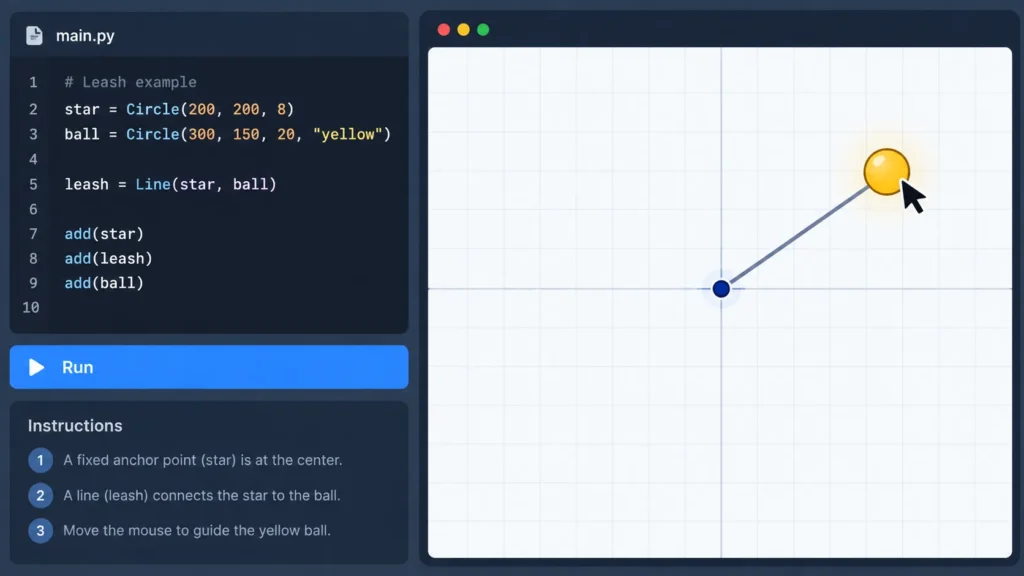
This demonstration illustrates the same coordinate relationship as the exercise. It is not the CodeHS editor or its official output.
There are three relevant positions:
- Anchor: The center of the canvas.
- Mouse: The current cursor location.
- Ball: The circle’s center, matching the cursor location.
The line connects the anchor to the mouse position.
This relationship explains why the program does not need to calculate the line’s length manually. Updating the endpoint automatically changes its visible length and direction.
Common Leash CodeHS Errors and Fixes
Students can understand the intended result and still encounter problems with syntax, object positioning, or event handling.
The following table identifies several common issues.
| Problem | Likely cause | Recommended fix |
|---|---|---|
| Ball does not move | Mouse handler was not registered | Check mouseMoveMethod(leash); |
| Line does not follow the ball | Line endpoint is not updated | Use line.setEndpoint(e.getX(), e.getY()); |
| Entire line moves | Both line endpoints are being changed | Update only the endpoint |
| Undefined variable error | Graphic object is outside the function’s scope | Declare shared variables outside functions |
| Program fails on movement | Incorrect callback or event parameter | Verify the handler function and e |
| Line appears in front of ball | Drawing order places the line above the circle | Add the line before adding the ball |
Why Does the Ball Move but the Line Stay Still?
This generally happens when the program correctly updates the circle but never changes the line’s endpoint.
For example:
function leash(e) {
    ball.setPosition(e.getX(), e.getY());
}
This function only moves the ball.
To maintain the connection, add:
line.setEndpoint(e.getX(), e.getY());Both methods must use the same coordinate values to keep the visual elements aligned.
Why Does the Entire Leash Move?
Another problem occurs when students use the line’s move() method instead of setEndpoint().
The methods have different purposes.
move(dx, dy) moves the line by an offset, while setEndpoint(x, y) changes its ending position.
Since the Leash exercise requires a fixed anchor, setEndpoint() is the appropriate method.
Why Does the Program Show Nothing Initially?
The example initially creates a zero-length line at the canvas center, so the line itself may not be visible until the cursor moves.
The circle, however, should appear immediately.
If neither element appears, verify that start() creates the objects, both are added to the canvas, and the program displays no execution errors.
How to Test the Leash Program in CodeHS
A working solution should behave correctly in different areas of the canvas, not just near the center.
After entering the code, select Run in the CodeHS editor and check whether the ball appears. Move your cursor around the drawing area and observe how the line responds.
Test at least these scenarios:
- At the center: The ball should be centered, and the line should have little or no visible length.
- Toward the top: The ball should move upward while the line remains attached to the center.
- Toward the bottom-right: The line should stretch diagonally toward the ball.
- Back toward the center: The line should shorten as the ball approaches its anchor.
Once the behavior looks correct, use Check Code to review the exercise’s available automated tests.
According to the CodeHS Test Cases knowledge base, its test system evaluates whether student programs meet applicable functional and stylistic requirements. CodeHS also cautions that passing automated tests does not necessarily establish that every aspect of a program is correct.
Therefore, both visual testing and automated feedback are useful.
What If the Leash Exercise Number Is Different?
Leash does not have a single universal exercise number across all CodeHS courses.
The official Introduction to Computer Science in JavaScript course lists it as 9.7.4, while other curricula place the same named exercise elsewhere.
For example, CodeHS also lists Leash as 10.7.4 in Texas Computer Science 1 and 15.2.4 in Virginia Computer Science Foundations.
Students may also encounter references to 4.7.4 Leash in older assignment discussions.
These numbering differences matter because an answer found online may correspond to a different course arrangement or assignment version.
The best approach is to compare the actual exercise instructions, programming language, and expected behavior rather than relying entirely on the lesson number.
Why This Exercise Matters for Learning JavaScript
The Leash assignment teaches a basic pattern used throughout interactive programming: create an object once, then modify it in response to events.
The program is relatively small, but its design introduces several important concepts.
Event handling allows JavaScript to respond to user actions. Instead of repeatedly checking the mouse position through a manually written loop, CodeHS calls the registered function when movement occurs.
Object manipulation allows existing graphics to change position without creating a new circle or line for every mouse movement.
Coordinate consistency ensures that two separate shapes behave as a connected visual system.
Function separation keeps the initial setup inside start() and ongoing mouse updates inside leash(). This makes the program easier to understand and troubleshoot.
These concepts provide foundations for more advanced graphics projects, including dragging objects, drawing interfaces, moving characters, and building interactive games.
Where to Get Official CodeHS Help
Although answer-sharing websites can provide examples, official documentation is more reliable for checking function names and supported syntax.
CodeHS provides a Docs tab within its coding editor, along with assignment instructions, sample output, and test-case feedback.
Its student documentation recommends checking these resources while developing a solution. The platform also provides debugging features, including code history and tools for stepping through supported programs.
For Leash specifically, the most relevant documentation topics are:
- JavaScript graphics, especially the Circle and Line objects
- Mouse movement events and callback functions
- Canvas coordinates and object positioning
- Graphics methods such as
setPosition()andsetEndpoint()
These references can help determine whether an error comes from the program’s logic or from using an unsupported command.
Frequently Asked Questions
1. What is the correct answer for Leash CodeHS 9.7.4?
The solution creates a circle and a line at the center of the canvas, registers a mouse-movement function, and updates the ball’s position and the line’s endpoint whenever the mouse moves. The JavaScript example provided above demonstrates this behavior using documented CodeHS methods.
2. Which programming language is used for Leash CodeHS?
The Leash exercise discussed in this guide uses JavaScript with the CodeHS graphics library. Its graphics commands are specific to that programming environment and should not be confused with Python Karel commands or ordinary browser HTML canvas methods.
3. What does mouseMoveMethod() do in CodeHS?
mouseMoveMethod() registers a function that CodeHS calls when the mouse moves across the graphics canvas. The function receives an event object containing information about the mouse’s current position.
4. Why is setEndpoint() important in the Leash exercise?
setEndpoint() changes the ending position of the leash line without requiring the starting point to move. This allows the line to remain anchored at the screen center while stretching toward the moving ball.
5. Why is my Leash CodeHS answer not passing the test cases?
A solution may fail because of incorrect function names, missing mouse-event registration, scope errors, or differences between the implemented behavior and the assignment requirements. Review the Test Cases and Assignment tabs to identify which requirements are not being satisfied.
6. Can I use the same Leash answer for exercise 4.7.4 or 10.7.4?
Possibly, because different CodeHS course versions can contain similar Leash exercises under different numbers. However, students should compare their own assignment instructions and starter code before reusing a solution, since the requirements may not be identical.
Also Read: Gfxprojectality Tech Trends from Gfxmaker: 2026 Guide
