


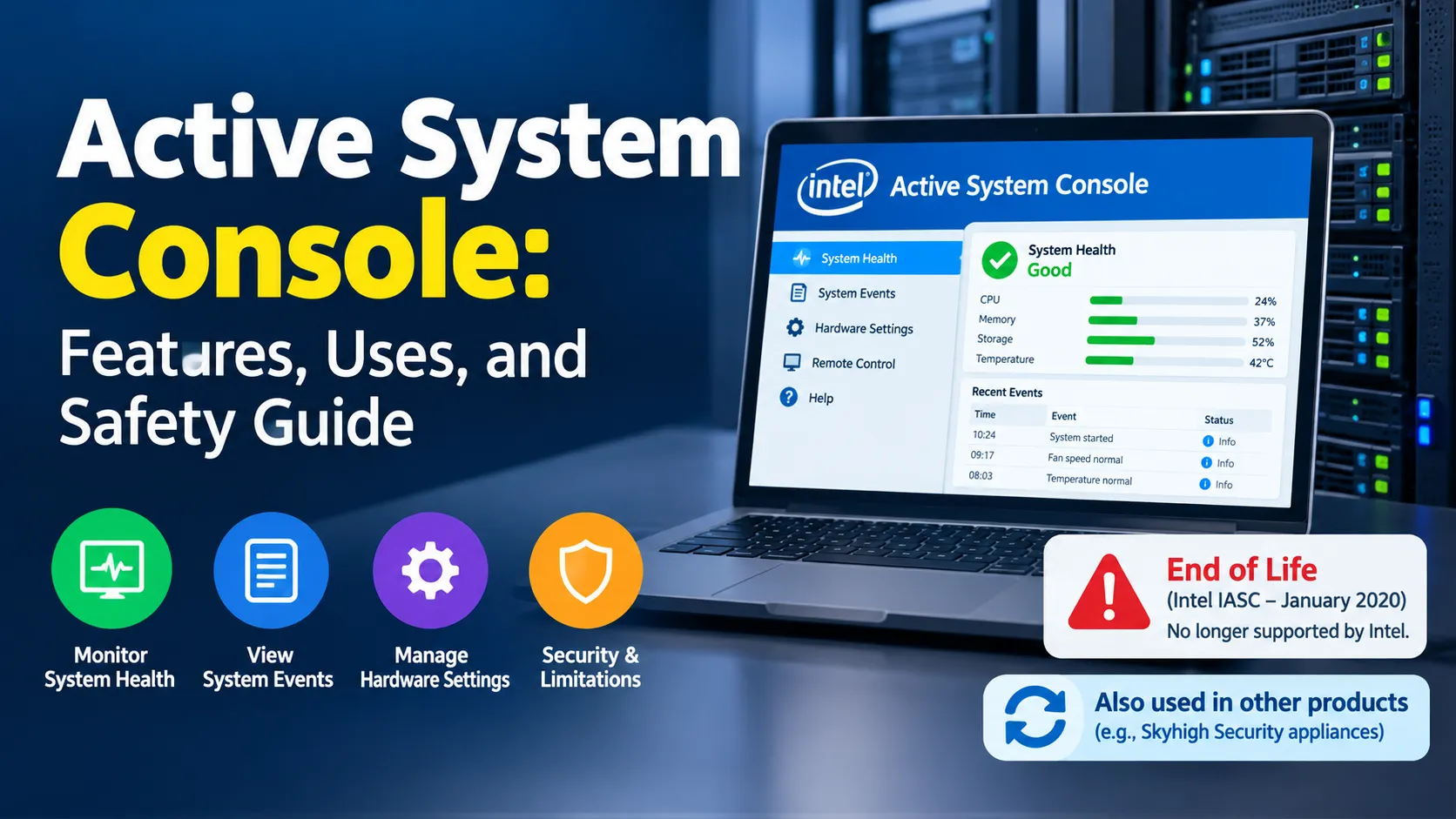
Active System Console is a hardware monitoring and management interface used to check server health, review system events, and manage certain hardware settings. The best-known version is Intel Active System Console (IASC), a lightweight, browser-based utility for Intel server systems that reached end of life in January 2020 and is no longer supported by Intel.
Understanding the software’s original purpose, capabilities, security limitations, and available replacements is important for anyone maintaining an older server. The same name also appears in documentation for other products, including Skyhigh Security appliances, so identifying the exact software is the first step toward using it correctly.

What Is Active System Console?
Active System Console is a management interface designed to help administrators inspect hardware information and troubleshoot server problems from a centralized dashboard. In Intel’s implementation, it provided access to server health information, hardware sensors, system event logs, component inventories, and selected management settings.
Intel developed the utility as part of its System Management Software offering, particularly for small businesses and administrators who needed a straightforward way to monitor individual servers. Rather than checking every hardware component separately, administrators could use the console to review important information through a web browser.
However, Active System Console is not a single universal application. The term can refer to different implementations depending on the hardware or software platform. Intel’s discontinued product and the Active System Console documented for Skyhigh Secure Web Gateway appliances should not be treated as interchangeable.
What Does Intel Active System Console Do?
Intel Active System Console was designed to simplify routine server monitoring and troubleshooting. Its features helped administrators identify hardware problems, review diagnostic information, and understand the configuration of a server without physically inspecting every component.
The following table summarizes its documented capabilities.
| Feature | Purpose |
|---|---|
| Server health monitoring | Displays information about the overall condition of the server and its components. |
| Hardware sensor readings | Provides information from supported temperature, cooling, voltage, and other hardware sensors. |
| System Event Log (SEL) | Helps administrators investigate recorded hardware events and errors. |
| Hardware inventory | Identifies installed components and provides system and Field Replaceable Unit (FRU) information. |
| Storage monitoring | Displays information about supported storage devices, drives, and logical storage configurations. |
| Processor and memory information | Helps administrators review installed processors and memory components. |
| Alerts and notifications | Supports email and SNMP alerts for relevant system events. |
| Diagnostic reports | Generates reports containing selected hardware, sensor, and management information. |
| BMC configuration | Provides access to certain Baseboard Management Controller settings. |
These capabilities are documented in Intel’s Active System Console User Guide. Actual functionality depends on the console version, supported server hardware, firmware, and operating environment.
How Hardware Monitoring Helps
Server hardware can develop problems before the entire machine stops working. A cooling issue, degraded power supply, or hardware sensor warning may indicate that maintenance is needed.
A monitoring dashboard helps administrators recognize these warning signs earlier. For example, Intel’s support documentation describes cases in which a power supply’s failed or degraded condition appears in the Active System Console and system event logs.
The console can therefore support troubleshooting and maintenance planning, but it does not guarantee that every hardware failure will be detected or prevented. Administrators still need to investigate alerts and confirm the underlying cause.
How Does Active System Console Work?
Intel Active System Console worked as software installed on a compatible server. It collected and presented information made available by the server’s operating system, hardware sensors, and management components through a web-based interface.
A typical workflow involved three stages.
- Installation: The administrator installed a version compatible with the server hardware and operating system.
- Monitoring: The software displayed available hardware information, system events, and management settings.
- Troubleshooting: The administrator reviewed the information, investigated warnings, and used supported management functions to diagnose problems.
The web interface allowed administrators to view information from another computer with network access to the server. Intel’s historical troubleshooting documentation describes accessing the interface through a URL based on the server’s IP address, including the path /asc/ and port 9393.
It is important to distinguish this application from a server’s embedded Baseboard Management Controller (BMC). The BMC is a hardware-based management component that can operate independently of the main operating system. Intel’s later replacement guidance identifies the embedded BMC web console as the preferred replacement for its discontinued Active System Console on the server platforms covered by that guide.
Is Active System Console Still Supported in 2026?
No. Intel Active System Console is a discontinued product and should not be considered a supported monitoring solution in 2026. Intel announced the end of life of Active System Console and Intel Multi-Server Manager in January 2020.
Intel’s security advisory, INTEL-SA-00261, explicitly states that the product is no longer available and will not receive additional functional, security, or other updates. Intel recommends that users uninstall it and discontinue its use as soon as possible.
This matters because server management software can have privileged access to hardware and system configuration. Running an unsupported management application can leave an environment exposed to security weaknesses that will not be addressed through future product updates.
What About Intel Active System Console Version 8.0 Build 24?
Intel’s security advisory identifies CVE-2019-11120, a vulnerability involving insufficient path checking in the installer for versions before 8.0 Build 24. The issue could potentially allow privilege escalation through local access under the conditions described in the advisory.
Although the advisory discusses a mitigation for that specific vulnerability, it does not mean that version 8.0 Build 24 or another historical release is currently supported. Intel’s recommendation is to discontinue use of the product rather than rely on an old version as a secure, long-term management solution.
For administrators maintaining older hardware, the appropriate response is to identify the server model, review its available management options, and plan a migration to a supported solution.
Also Read: Google Atlas Chromebook: Pixelbook Go Features, Updates, and Support
What Is the Best Alternative to Active System Console?
For compatible Intel server systems, Intel’s March 2020 replacement guide recommends using the integrated BMC web console instead of Intel Active System Console. This interface provides hardware monitoring and management features without requiring the discontinued application to perform the same role.
The exact replacement depends on the server model and its management hardware.
| Alternative | Best use | Important consideration |
|---|---|---|
| Integrated BMC web console | Monitoring and managing a compatible physical server | Check the server’s hardware and firmware documentation. |
| Manufacturer’s remote management interface | Managing servers from vendors such as Dell, HPE, or Lenovo | Features and names vary by model and product generation. |
| Supported server monitoring software | Centralized monitoring of multiple servers and infrastructure components | Confirm compatibility, licensing, alerting, and security requirements. |
| Operating system monitoring tools | Checking operating system performance, logs, and running services | These tools may not provide out-of-band hardware access. |
The integrated BMC console is particularly useful because it can provide access to management functions independently of the host operating system. Depending on the hardware, it may offer sensor readings, event logs, remote console access, power controls, firmware management, and configuration options.
How to Access an Intel BMC Web Console
The exact steps vary by server model, but Intel’s replacement guide describes the following general process for the systems it covers.
- Restart the server and enter the BIOS or firmware setup utility.
- Locate the server management or BMC LAN configuration settings.
- Configure the management network and create an authorized management account.
- Assign a suitable network address, either through DHCP or a static configuration.
- From a computer permitted to access the management network, open a browser and navigate to the BMC’s IP address.
- Sign in with the account created for management access.
These are general instructions, not a universal procedure for every Intel server. Consult the documentation for the exact model before changing firmware or management settings.
Intel recommends using a dedicated management network where supported. This helps separate administrative access from ordinary user traffic and reduces unnecessary exposure.
Is Active System Console Safe to Use?
The answer depends on which implementation you mean. For Intel Active System Console, the central concern is that the software is no longer maintained and Intel explicitly recommends discontinuing its use.
A management interface is security-sensitive because it may expose hardware information or allow changes to server configuration. If an attacker gains access to such an interface, the consequences can extend beyond the monitoring application itself.
Administrators should follow these practices when reviewing an existing installation:
- Identify the product, installed version, server model, and operating environment.
- Avoid exposing a legacy management interface directly to the public internet.
- Restrict management access to authorized users and trusted networks.
- Use strong, unique administrator credentials and remove accounts that are no longer required.
- Review the vendor’s security guidance and plan to replace discontinued software.
- Avoid downloading old installation packages from unverified websites.
These precautions reduce risk, but they do not make an unsupported product fully secure. For Intel Active System Console, migration to a supported management solution is the more appropriate long-term approach.
Why Is Active System Console Not Working?
A connection failure does not necessarily mean that the server’s hardware has failed. It may indicate a problem with the application, network access, browser compatibility, or the server’s configuration.
Intel’s historical troubleshooting article lists several possible causes, including an incompatible console version, browser issues, firewall restrictions, and certificate warnings. It also documents ports 9393, 9191, and 7777 in the context of accessing Intel Active System Console remotely.
Because Intel has discontinued the software, these troubleshooting steps should be understood as historical diagnostic information, not a recommendation to restore the application for ongoing production use.
For an existing legacy installation, the following checks can help establish what is happening.
Check the server and product version. Confirm that the message or application actually refers to Intel Active System Console rather than another management tool.
Check basic network connectivity. If the server is reachable but the interface is not, the problem may involve the application service, firewall, or network configuration.
Review browser and certificate warnings. Historical releases may use certificate configurations that modern browsers do not trust by default. Do not bypass certificate warnings without verifying the destination and securing the connection.
Check hardware management access. If the server supports an integrated BMC console, determine whether it can provide the required monitoring and diagnostic information instead.
Plan the migration. Avoid spending excessive time restoring a discontinued tool when a supported management interface is available.
Active System Console in Skyhigh Security Appliances
Another important distinction is Skyhigh Security’s use of the name Active System Console for retrieving debugging information about supported Secure Web Gateway appliance hardware.
Skyhigh’s official installation documentation describes enabling this appliance-specific console through SSH with the asc-enable command. After an administrator sets a password, the documented interface is available through HTTPS on port 9393 at the monitored appliance’s IP address.
Skyhigh also documents an asc-disable command for disabling that console. Its guidance specifically recommends using the Remote Management Module instead of Active System Console to retrieve hardware debugging information.
This is a separate, platform-specific use of the name. The commands and instructions should only be applied to the relevant Skyhigh appliance and its supported software environment, not to an ordinary computer or an Intel server simply because the product names match.
Frequently Asked Questions
1. What is Active System Console used for?
Intel Active System Console was used to monitor server hardware health, inspect sensors and event logs, review installed components, generate diagnostic reports, and manage selected server settings through a web interface.
2. Is Intel Active System Console discontinued?
Yes. Intel announced its end of life in January 2020. The company states that the product no longer receives functional or security updates and recommends uninstalling it and discontinuing its use.
3. Can I still access Active System Console through a browser?
An existing installation may still respond through its historical web interface, depending on the server, application, and network configuration. However, being accessible does not mean the software is supported or secure, and Intel recommends that users discontinue its use.
4. What replaces Intel Active System Console?
For compatible Intel server systems covered by Intel’s replacement guidance, the integrated BMC web console is the recommended alternative. Other server manufacturers provide their own management interfaces, so the correct choice depends on the hardware model.
5. Is Active System Console the same as a command-line terminal?
No. A system console can refer generally to an interface used to administer a computer, including a text-based terminal. Intel Active System Console was a specific server management application with a browser-based dashboard.
6. Does Active System Console work on every computer?
No. Intel Active System Console was designed for compatible Intel server platforms and supported operating environments. It is not a universal Windows monitoring utility, and its discontinued status makes it unsuitable as a new, general-purpose management solution.
