


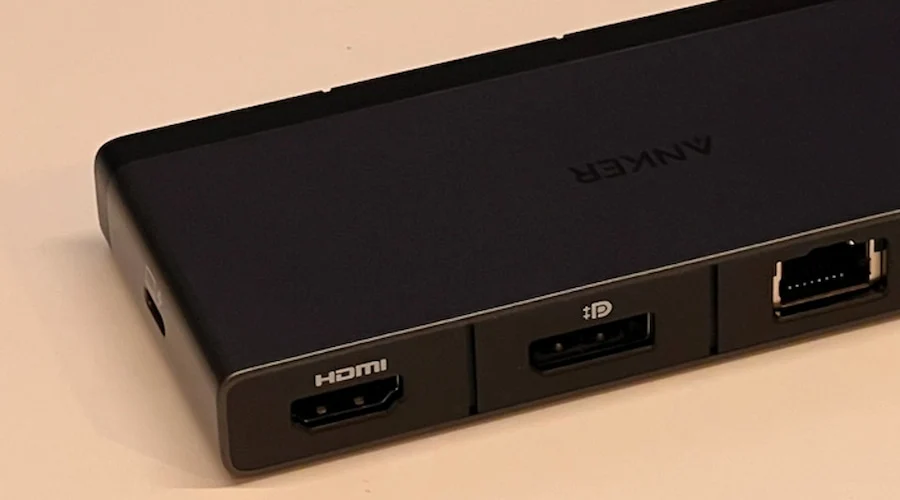
Connecting a computer to a monitor, television, or projector requires the right display cable. Two of the most common options are DisplayPort (DP) and HDMI. Understanding dp cable vs hdmi can help you choose the right connection for gaming, office work, entertainment, and professional displays. Although both technologies transmit digital video and audio, they offer different features, compatibility options, and performance capabilities.
In this guide, we will explain how DisplayPort and HDMI work, compare their key differences, and explore when to use each connection.

What Is DisplayPort (DP)?
DisplayPort is a digital display interface developed by the Video Electronics Standards Association (VESA). It was introduced in 2006 and was primarily designed for connecting computers, graphics cards, and monitors.
A DisplayPort cable can transmit high-quality digital video and audio through a single connection. It is particularly popular among desktop computer users, professional designers, and PC gamers who need high resolutions and fast refresh rates.
Some important features of DisplayPort include:
- Support for high-resolution displays, including 4K and 8K.
- High refresh rates for smoother gaming and video playback.
- Multi-Stream Transport (MST) for supported multi-monitor setups.
- Adaptive Sync technology for reducing screen tearing.
- Compatibility with USB-C through DisplayPort Alternate Mode.
DisplayPort is commonly available on desktop graphics cards, gaming monitors, docking stations, and professional computer displays.
What Is HDMI?
HDMI stands for High-Definition Multimedia Interface. It is a widely used digital connection designed to transmit video and audio through one cable.
HDMI was introduced in 2002 and quickly became a standard connection for consumer electronics. Today, it is commonly found on televisions, laptops, gaming consoles, projectors, monitors, and home theater systems.
HDMI supports several useful features, including:
- High-definition and ultra-high-definition video.
- Digital audio transmission.
- 4K and 8K resolution support, depending on the version.
- Audio Return Channel (ARC) and Enhanced Audio Return Channel (eARC).
- Variable Refresh Rate (VRR) and Auto Low Latency Mode (ALLM) on supported HDMI 2.1 devices.
Because of its wide compatibility, HDMI is a convenient choice for connecting entertainment devices and home theater equipment.
DP Cable vs HDMI: What Are the Main Differences?
Although DisplayPort and HDMI perform similar functions, they were developed with different applications in mind.
DisplayPort is commonly associated with computer monitors and high-performance PC setups, while HDMI is widely used in televisions, gaming consoles, and home entertainment systems.
Here are the main differences to consider.
1. Bandwidth and Data Transfer
Bandwidth determines how much video and audio information a connection can transmit at one time. Higher bandwidth can support higher resolutions, faster refresh rates, and more demanding display settings.
DisplayPort 2.1 supports bandwidth of up to 80 Gbps, while HDMI 2.1 supports up to 48 Gbps.
The actual performance depends on the specific version and capabilities of the connected devices.
2. Resolution and Refresh Rate
Resolution determines the number of pixels displayed on a screen, while refresh rate measures how many times the screen updates each second.
Both DisplayPort and HDMI support high-resolution displays, but their capabilities vary by version.
For example:
- DisplayPort 1.2 supports 4K resolution at up to 60Hz.
- DisplayPort 1.4 supports 4K at higher refresh rates, including 120Hz in suitable configurations.
- DisplayPort 2.1 supports advanced configurations, including 4K at 240Hz.
- HDMI 2.0 supports 4K at up to 60Hz.
- HDMI 2.1 supports 4K at up to 120Hz and 8K at up to 60Hz in suitable configurations.
Display Stream Compression (DSC) can enable higher resolutions and refresh rates when supported by the display, graphics card, and connection.
3. Gaming Performance
For PC gaming, DisplayPort is often a popular choice because many gaming monitors and graphics cards support its high refresh rates and Adaptive Sync features.
It is particularly useful for gamers who want smooth gameplay at high resolutions.
However, HDMI 2.1 is also an excellent option for gaming. It supports features such as Variable Refresh Rate and Auto Low Latency Mode, making it suitable for modern gaming consoles and compatible televisions.
The best choice depends on the gaming device, monitor specifications, and supported connection version.
4. Multi-Monitor Support
DisplayPort offers a useful feature called Multi-Stream Transport (MST). It allows compatible computers and monitors to connect multiple displays through a supported DisplayPort connection.
This feature can be helpful for office work, video editing, financial analysis, and professional multitasking.
Standard HDMI connections do not provide native MST daisy-chaining, so multiple displays generally require separate video outputs or compatible external hardware.
5. Audio Support
Both DisplayPort and HDMI can transmit digital audio along with video through a single cable.
However, HDMI offers additional home entertainment features, including ARC and eARC. These technologies allow audio to travel from a television to a compatible soundbar or AV receiver through the HDMI connection.
DisplayPort is mainly focused on computer displays and does not provide an equivalent HDMI-style audio return feature.
6. Device Compatibility
HDMI has wider compatibility with consumer electronics. It is commonly available on televisions, projectors, gaming consoles, streaming devices, and laptops.
DisplayPort is more frequently found on desktop graphics cards, computer monitors, and professional display equipment.
Before purchasing a cable, check the available ports and supported standards on both devices.
DisplayPort vs HDMI Comparison Table
The following table highlights some important differences between the two technologies.
| Feature | DisplayPort | HDMI |
| Main purpose | Computer displays | Home entertainment and displays |
| Common devices | PCs, monitors, graphics cards | TVs, consoles, laptops |
| Audio support | Yes | Yes |
| Multi-monitor daisy-chaining | Yes, with MST | Not natively |
| Gaming features | Adaptive Sync | VRR and ALLM |
| Audio return | No equivalent to eARC | ARC and eARC |
| DisplayPort 2.1 bandwidth | Up to 80 Gbps | Not applicable |
| HDMI 2.1 bandwidth | Not applicable | Up to 48 Gbps |
| Common applications | PC gaming and professional monitors | TVs, projectors, and consoles |
What Is the Difference Between USB-C and DisplayPort?
USB-C is a physical connector type, while DisplayPort is a digital display interface. However, many modern laptops and other devices can transmit DisplayPort video signals through a USB-C port using DisplayPort Alternate Mode.
This allows users to connect compatible devices to external monitors without requiring a traditional DisplayPort connector.
A USB-C connection may also support data transfer and power delivery, depending on the device and cable specifications.
This is particularly useful for modern laptops with limited ports, as a single USB-C connection can support multiple functions.
How to Connect a USB-C Device to an HDMI Monitor
Many modern laptops, tablets, and smartphones feature USB-C ports instead of traditional HDMI ports. If your external monitor or television only has an HDMI input, an appropriate adapter can help connect the two devices.
A usb c to hdmi adapter allows compatible USB-C devices to send video and audio signals to an HDMI display.
The connection process is generally simple:
- Check whether your USB-C device supports video output through DisplayPort Alternate Mode or another compatible video protocol.
- Choose a USB-C to HDMI adapter that supports your required resolution and refresh rate.
- Connect the USB-C end to your laptop, tablet, or compatible smartphone.
- Connect an HDMI cable between the adapter and your monitor or television.
- Select the correct HDMI input on your external display.
Once connected, your device should recognize the external screen. You can then choose whether to duplicate your display or extend your desktop.
Remember that not every USB-C port supports video output. Always check your device specifications before purchasing an adapter.
When Should You Choose DisplayPort?
DisplayPort is often the better choice for specific computer-related applications.
Consider using DisplayPort when:
- You have a gaming monitor that supports high refresh rates.
- You want to connect multiple compatible monitors using MST.
- Your desktop graphics card and monitor support advanced DisplayPort standards.
- You need a connection designed primarily for high-performance computer displays.
- You want to take advantage of supported Adaptive Sync features.
For many desktop PC users, DisplayPort provides an excellent combination of performance and flexibility.
When Should You Choose HDMI?
HDMI is generally more convenient for home entertainment and devices that use HDMI as their standard display connection.
Consider using HDMI when:
- Connecting a laptop to a television.
- Connecting PlayStation or Xbox gaming consoles to a display.
- Setting up a home theater system.
- Connecting a projector for presentations.
- Using a soundbar or AV receiver with ARC or eARC.
- Connecting devices that do not have DisplayPort outputs.
HDMI is widely supported, making it a practical option for everyday entertainment and multimedia applications.
How to Choose the Right Display Cable
Choosing between DisplayPort and HDMI does not have to be difficult. The most important thing is to understand your device requirements.
Here are some factors to consider before buying a display cable.
Check Your Device Ports: Make sure your computer, monitor, television, or projector has compatible connections.
Consider Resolution Requirements: If you use a 4K or 8K display, choose a cable and connection standard that supports your required resolution.
Check Refresh Rate: Gamers and professional users should verify that their cable supports the monitor’s desired refresh rate.
Look at Cable Quality: Choose reliable cables from trusted manufacturers. Proper shielding and build quality can help provide stable signal transmission.
Consider Cable Length: Longer cables may require active or optical solutions, depending on the connection standard and required performance.
Check Additional Features: If you need HDR, variable refresh rate, audio return, or multiple monitor support, make sure your devices and cables support those features.
Conclusion
Choosing between DisplayPort and HDMI depends on how you plan to use your display. DisplayPort is particularly useful for PC gaming, high-performance monitors, and compatible multi-monitor setups. HDMI is widely used for televisions, gaming consoles, projectors, and home entertainment systems.
Both technologies provide excellent digital video and audio transmission. Instead of assuming one is always better, compare the supported versions, bandwidth, resolution, refresh rate, and compatibility of your devices.
If you are using a modern laptop with a USB-C port, a compatible USB-C to HDMI adapter can also provide a convenient way to connect an external monitor or television.
Frequently Asked Questions
1. Is DisplayPort better than HDMI?
DisplayPort can offer advantages for high-performance PC monitors, high refresh rates, and multi-monitor setups. HDMI is generally more convenient for televisions, gaming consoles, and home entertainment equipment. The better option depends on your devices and requirements.
2. Can DisplayPort support 4K resolution?
Yes. DisplayPort supports 4K resolution, with the maximum refresh rate depending on the DisplayPort version, cable, and connected devices.
3. Does HDMI support high refresh rates?
Yes. HDMI 2.1 supports 4K at up to 120Hz in suitable configurations. The actual performance depends on the display, source device, and cable.
4. Can I connect a USB-C laptop to an HDMI monitor?
Yes. You can use a compatible USB-C to HDMI adapter or cable. However, your laptop’s USB-C port must support video output.
5. Does DisplayPort carry audio?
Yes. DisplayPort can transmit digital audio and video through the same cable when supported by the connected devices.
6. Which cable is best for PC gaming?
DisplayPort is often preferred for PC gaming, particularly with high-refresh-rate monitors. However, HDMI 2.1 can also provide excellent gaming performance when supported by the graphics card and display.
7. Can I use an HDMI cable with a DisplayPort port?
Yes, but you generally need a compatible DisplayPort-to-HDMI adapter or converter. Make sure you choose the correct direction because some adapters only support DisplayPort output to HDMI input.
