


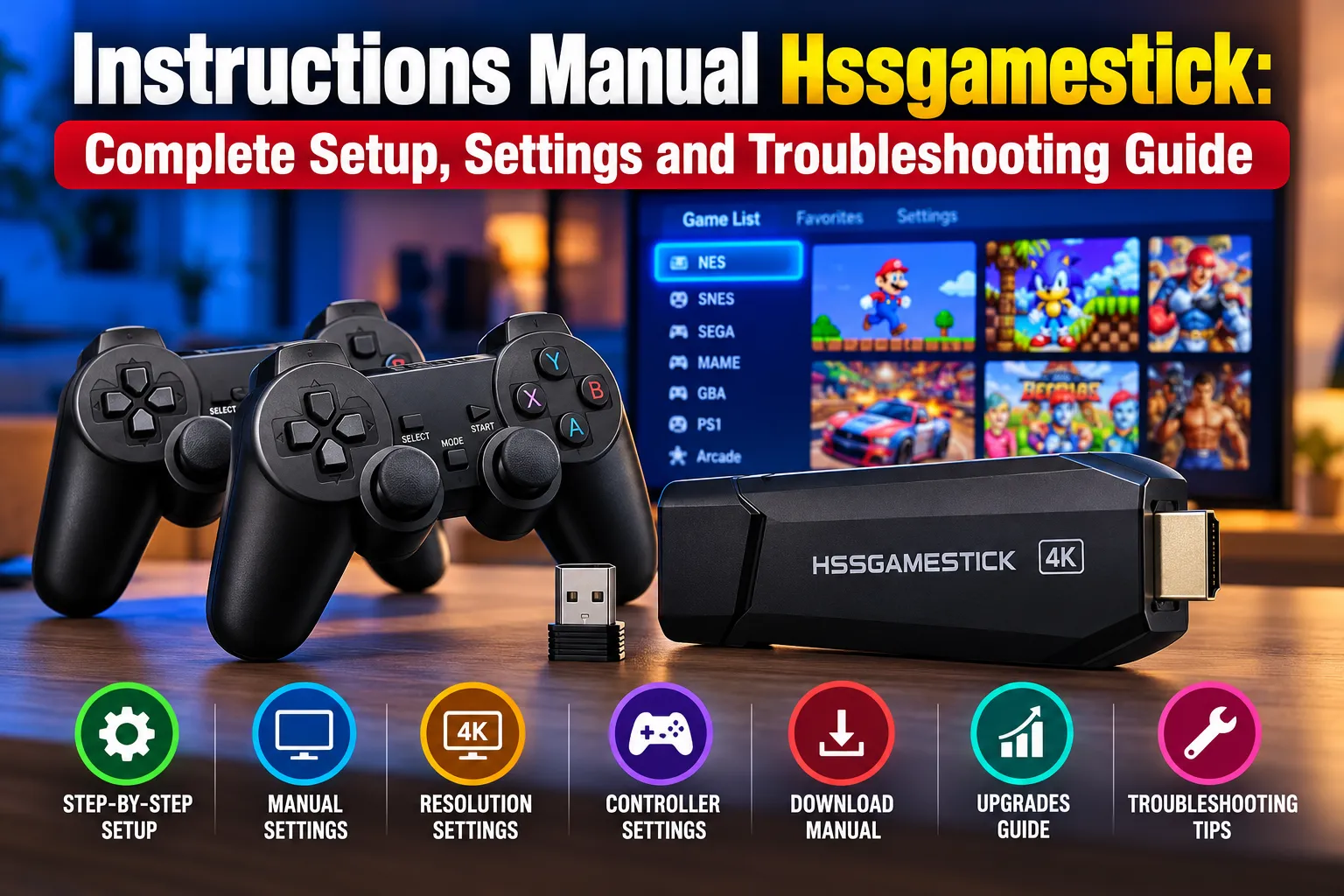
The Instructions Manual Hssgamestick explains how to connect a retro gaming stick to a television, configure wireless controllers, adjust display settings, manage saved games, and troubleshoot common problems. Most HDMI game sticks are relatively simple to operate, but their controls, menus, and available features can differ depending on the hardware and software version.
One important distinction is that HSSGameStick is not clearly documented as one standardized console with a universally applicable manufacturer manual. The name appears across gaming guides, while some retailers associate it with software variants used on generic HDMI retro gaming sticks. As a result, instructions found online may not match every device.
This guide explains the practical setup process, identifies which settings are commonly available, and separates supported technical information from unverified claims.

What Is HSSGameStick and How Does It Work?
HSSGameStick generally refers to a compact HDMI gaming device intended for playing classic video games through emulation. Unlike a traditional console that requires physical cartridges or discs, these devices typically load games from internal or removable storage.
The hardware connects to a television through HDMI and receives electrical power through a separate connection, often USB. Compatible wireless controllers allow players to navigate menus, select games, and interact with supported titles.
Depending on the model, a package may contain the gaming stick, one or two controllers, a USB wireless receiver, a power cable, an HDMI extension cable, and a memory card.
A generic Game Stick 4K user manual documents this type of arrangement, although its specifications should not automatically be applied to every HSSGameStick.
Some retailers also describe HSSGameStick, LCFGameStick, and TGAGameStick as related software labels found on similar retro gaming hardware. That description is useful context, not proof that every product carrying these names uses identical components.
Before following advanced instructions, check the product label, supplied documentation, and software information displayed on your device.
Instructions Manual Hssgamestick: Step-by-Step Initial Setup
Most compatible HDMI gaming sticks can be prepared without additional software installation. The essential requirements are a working television connection, the correct power supply, and functioning controllers.
Step 1: Connect the Hardware
Follow these steps in order:
- Inspect the package. Identify the HDMI connector, power input, controller receiver, and any removable memory card. Confirm that the necessary accessories are present.
- Connect the game stick to your television. Insert it into an available HDMI port. Use the supplied HDMI extension cable if the stick does not fit comfortably behind the television.
- Attach the appropriate power source. Connect the provided power cable and use a power adapter that matches the device’s stated electrical requirements.
- Insert the wireless receiver. If the controllers use a 2.4 GHz USB dongle, connect it to the designated port on the gaming stick.
- Prepare the controllers. Install the specified batteries or charge rechargeable controllers, then turn them on.
- Select the correct television input. Use the television remote to select the HDMI port connected to the device.
- Check the main menu. Once the interface appears, test the directional buttons and launch a game to confirm that the setup works.
If the screen remains black, check the physical connections and power source before attempting a reset.
Many inexpensive game sticks depend on removable storage for essential files. Do not remove or format an unfamiliar memory card simply because the device is having difficulty starting.
Step 2: Understand the Main Menu
A typical retro gaming interface organizes titles by console or emulator category. Depending on its software, it may also provide search, recently played games, favorites, and configuration options.
Use the directional pad to move through available categories. The primary action button usually opens a selected game, while another button returns to the previous menu.
Some Game Stick 4K variants use the Select button to open system preferences from the main game list. However, this shortcut is not guaranteed across all versions.

Manual Settings Hssgamestick: Understanding the Main Options
Manual Settings Hssgamestick refers to the configuration options users can adjust instead of relying entirely on factory defaults.
These settings may affect the appearance of games, controller behavior, language, audio, and other aspects of the interface.
The actual configuration menu depends on the installed software.
| Setting | What it controls | Recommended approach |
|---|---|---|
| Display resolution | HDMI video output | Select a supported display mode |
| Aspect ratio | Image proportions | Preserve the game’s original proportions |
| Controller mapping | Button assignments | Change only incorrect or uncomfortable controls |
| Audio | Volume and menu sounds | Start with normal settings |
| Language | Interface text | Choose your preferred available language |
| Save states | Stored gameplay snapshots | Confirm saves work before relying on them |
| Visual filters | Image smoothing or effects | Use according to preference and performance |
Not every option in this table will appear on every HSSGameStick.
Accessing System and Game Settings
Some retail documentation for compatible game-stick software describes two different menus.
Pressing Select on the home screen may open general preferences, such as language and interface sounds. Pressing Select + Start during gameplay may open a menu containing options to save, load, or exit a game.
These combinations are documented for certain generic Game Stick 4K configurations. If they do not work on your hardware, consult its matching instructions rather than experimenting with undocumented reset shortcuts.
Hssgamestick Resolution Settings: Improving Picture Quality
Hssgamestick Resolution Settings determine how the device sends its video signal to a television or monitor.
Some online guides describe 720p and 1080p output options, but support depends on the particular hardware and firmware. Marketing terms such as “4K Game Stick” should not be interpreted as proof that classic games are rendered internally at native 4K resolution.
Output resolution and game rendering resolution are different. A device may send an upscaled HDMI signal while the original game graphics remain low-resolution.
Choosing the Correct Resolution and Aspect Ratio
For a Full HD television, 1080p may be appropriate when supported. A 720p setting can provide a fallback if the higher-resolution output causes compatibility problems.
The aspect ratio deserves equal attention.
Many classic console games were designed for 4:3 displays. Stretching their picture to fill a modern 16:9 television can make characters and objects appear unnaturally wide.
Selecting the original aspect ratio generally provides a more faithful presentation, although personal preferences may differ.
For devices using RetroArch, the official RetroArch configuration documentation explains available aspect-ratio, video synchronization, and display options.
Reducing Input Lag
A delayed response between pressing a controller button and seeing the action on-screen is not necessarily caused by the gaming stick.
Modern televisions often apply additional image processing. Enabling the television’s Game Mode can reduce some of that delay.
Samsung’s Game Mode guidance confirms that the feature is designed to improve responsiveness by optimizing television processing.
For compatible HSSGameStick devices, this is often a more sensible first adjustment than attempting unsupported processor or graphics modifications.
Also Read: Gfxprojectality Tech Trends from Gfxmaker: 2026 Guide
Controller Settings Hssgamestick: Connecting and Customizing Gamepads
Controller Settings Hssgamestick covers wireless connectivity, button assignments, player identification, and supported input adjustments.
Many generic retro gaming sticks use wireless controllers connected through a dedicated USB receiver. This differs from pairing a conventional Bluetooth gamepad directly through a television.
If a controller does not respond, first examine its batteries, power switch, and receiver connection.
When two controllers are connected, check whether the first and second players have been assigned correctly. Some systems reserve menu shortcuts for the controller recognized as Player 1.
Changing Button Assignments
Button remapping can make unfamiliar controller layouts easier to use, particularly when switching between games originally developed for different consoles.
On systems running compatible RetroArch software, users can modify controller assignments through the Quick Menu and save changes for an individual game or emulator core.
The official Libretro input and controls guide explains this distinction.
A game-specific remapping file can preserve customized controls without changing the behavior of every other title.
However, these RetroArch options should only be expected when the device actually includes that software or exposes equivalent functionality.

Saving Progress and Managing Games
One useful feature found on many retro gaming systems is the ability to save gameplay progress.
Some games support traditional in-game saves, while compatible emulators may provide save states.
A save state records the emulated system’s condition at a particular moment, allowing the player to resume from that point later.
This is not identical to a normal game save. Save-state compatibility can depend on the emulator and its version.
For systems with the relevant feature, open the in-game menu, select an available save slot, and confirm that the state has been written successfully.
The Libretro Quick Menu documentation describes how save states and other emulator controls work.
Avoid powering off the device while it is saving. Unexpected interruptions can damage stored progress or other files.
Download Manual Hssgamestick: Finding Reliable Instructions
People searching for “Download Manual Hssgamestick” often want a PDF containing the device’s original setup instructions.
However, an independently verified, universal manufacturer-issued PDF covering every device described as HSSGameStick could not be established from the available documentation.
The safest approach is to identify the exact model before downloading instructions.
Check the manufacturer’s name, model number, hardware labeling, and software version. Compare those details against any manual offered by the retailer or included with the package.
Websites such as HSSGameStick.com publish gaming-related instructions, but the site’s About Us page describes it as an information platform rather than establishing it as the manufacturer of all devices using the name.
Are Hssgamestick Instructions from Hearthstats Official?
Hssgamestick Instructions from Hearthstats refers to gaming-related articles published on the HearthStats website.
These articles discuss setup, configuration, controller adjustments, and troubleshooting.
However, they should be treated as third-party guidance rather than authenticated manufacturer documentation.
Some online guides describe Wi-Fi connectivity, automatic updates, Bluetooth pairing, and other capabilities without establishing that they are supported by a specific hardware revision.
Users should therefore verify unfamiliar settings against their own device before following those recommendations.
Upgrades Hssgamestick: What Can Actually Be Improved?
Upgrades Hssgamestick is another common search phrase associated with improving the device’s performance or functionality.
For generic HDMI gaming sticks, practical improvements often concern accessories and configuration rather than major hardware changes.
A suitable replacement controller may improve usability if the supplied controller is damaged or unreliable. An HDMI extension cable can make physical installation easier, while a correctly rated power adapter may help eliminate problems caused by an inadequate power source.
Storage changes require greater care.
Some devices use a microSD card containing games, configuration files, or essential system components. Replacing it without identifying the file structure and compatibility requirements can prevent the console from starting.
Firmware modifications present a similar risk. An update intended for another board revision may leave the device unusable.
There is also no reliable basis for assuming that every HSSGameStick supports processor overclocking, expandable memory, downloadable applications, or automatic software updates.
Upgrade only features that are documented for the particular hardware model.
Common HSSGameStick Problems and Practical Solutions
Most initial problems can be investigated without changing advanced settings.
| Problem | What to check first |
|---|---|
| No picture or HDMI signal | Television input, HDMI connection, power supply |
| Controller not responding | Batteries, receiver connection, power switch |
| Controls feel delayed | Television Game Mode, wireless interference |
| Image appears stretched | Aspect ratio settings |
| Game freezes during launch | Game compatibility, storage connection |
| Saved progress disappears | Save method, selected slot, storage condition |
| Console restarts unexpectedly | Power stability, cable connections |
A recurring failure across several games may indicate a broader system or storage problem. A failure affecting only one title may instead involve that game’s compatibility with the emulator.
If basic checks do not solve the problem, contact the seller with the precise model details and a description of the symptoms.
Avoid factory resets and unfamiliar firmware files until you understand their consequences.

Frequently Asked Questions
Is HSSGameStick a standalone gaming console?
The name is commonly associated with compact retro gaming hardware that connects to a television through HDMI. However, available information does not establish one standardized product configuration for every device carrying the name.
Can HSSGameStick work without an internet connection?
Many generic HDMI retro gaming sticks run locally stored games without internet access. Whether a specific device requires connectivity for additional functions depends on its hardware and software.
Does HSSGameStick support 4K gaming?
A 4K label does not establish native 4K rendering. Supported HDMI output resolutions and actual emulation performance must be verified for the individual model.
Can I add new games to HSSGameStick?
Some compatible systems allow additional game files to be placed on supported storage. The process depends on the emulator, storage format, and directory structure. Users should also ensure they have the legal right to use the game files.
Where can I find the correct HSSGameStick manual?
Start with the documentation included in the package or request a model-specific PDF from the original seller. Verify the hardware details before following instructions from third-party websites.
Final Assessment
The Instructions Manual Hssgamestick is most useful when treated as practical guidance for a category of HDMI retro gaming devices rather than as one universal manufacturer’s handbook.
For most users, the priorities are straightforward: establish a stable HDMI and power connection, confirm that the controllers work, choose suitable display settings, and understand how progress is saved.
Advanced settings, storage changes, and firmware updates require more caution because devices sold under similar names may have important technical differences.
By matching instructions to the actual hardware and relying on documented features instead of unsupported online claims, users can configure their gaming stick more confidently while reducing the risk of unnecessary problems.
Also Read: Mygamerank Gaming Guides: Features, Gameplay Tips, and Complete Guide
